
The last stop on our journey through Plan Management is the Measures tab, which also includes results. A measure is a metric to be monitored during plan implementation, and a result is one instance of that metric collected on a particular date.
There are three types of measures:
- Mission Measures track progress towards mission outcomes and assess how systems are realizing their overall mission and aspiration.
- Strategic Priority Measures track progress towards priority impact and assess whether the initiatives within a priority area have achieved their intended aim.
- Initiative Measures track progress towards initiative implementation and assess how well systems are implementing that specific initiative.
Clicking on the Measures Tab will show you a screen like this one.
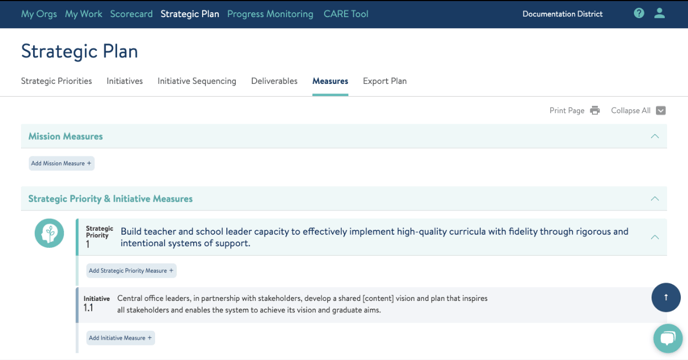
It’s easy to add measures. Simply click the Add Measure button associated with the plan artifact:
- Mission Measure - i.e. the plan itself
- Strategic Priority Measure
- Initiative Measure
Except for the title which tells you whether you’re adding or editing the measure and what kind of measure it is, you’ll use the screen below when you’re adding or updating any type of measure, including adding results.
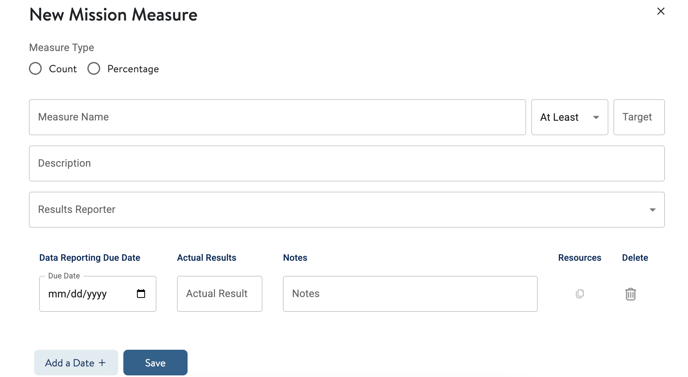
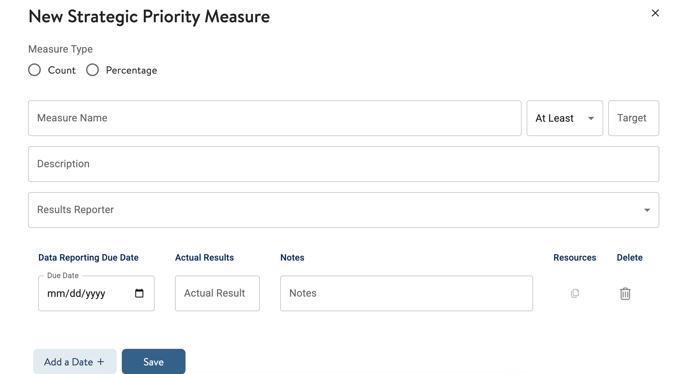
 Always give the measure a good descriptive name in the Measure Name field. At Attuned, this is commonly just called the Measure. See the screen shot on page 26 for a good example. Use the Description field for background information, other notes, or instructions to the results reporter.
The Results Reporter is the person responsible for gathering the results on the dates specified.
The table at the bottom of the screen contains the scheduled result collection dates and, when those dates arrive, the results themselves. Click Add A Date to add more rows - don’t worry about getting the dates in order, the system will order the result rows by date when you save.
Results reporters will have tasks on their My Work screens as those dates approach.
Here’s what a filled out screen looks like. Note that when you are editing a measure, you can add resources in exactly the same way that you can on a deliverable. Measure resources will generally be used to store the source data for a result if that is necessary. 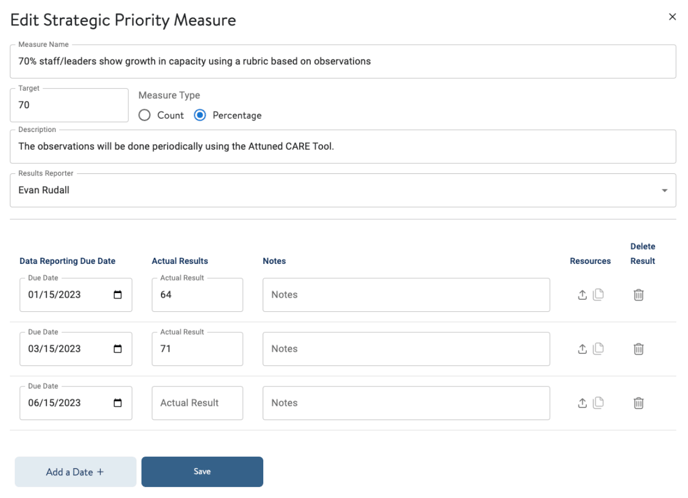
And here’s what that same measure looks like on the measures screen.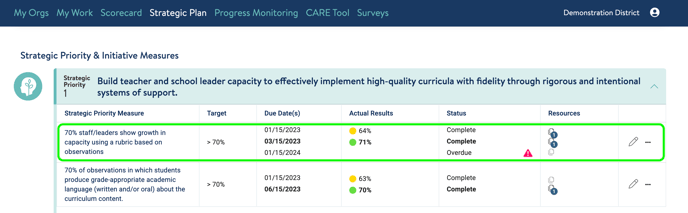
Note that each Measures section can be compressed using the carets in the upper right corners. The Mission Measures section is compressed in this example. Because Mission Measures change so infrequently, for example, we expect users will keep them compressed most of the time.
The dots next to the actual results indicate if the result is:
- Far below its target (red)
- Near its target (yellow)
- At or above target (green)
The circle around the result indicates that that result is the most recent. Overdue measures will show with a red alert icon.
If you need help creating or managing measures, send us a chat or email us at support@attunedpartners.com.