
Click here for a quick video on how to use the Saved Views feature, or read below for a step-by-step guide.
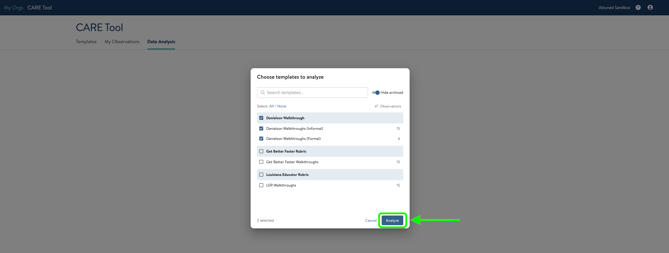
To get stared, click on Data Analysis. For the CARE Tool users that are accessing this tab for the first time after we've released this new feature, you will see a new pop up window asking you to select the templates from which you'd like to view/compare data. After selecting the desired templates, click Analyze. (Note: This pop up will not appear again as we have made it easier for you to select new/additional templates to analyze.)
From here, you will see a familiar view with visualization options in the top right of the analysis. (Skip ahead here to the Saved Views feature.)
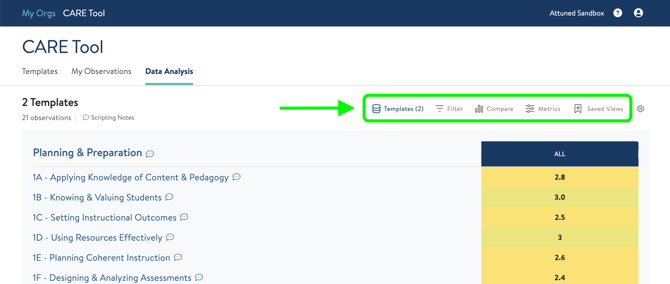
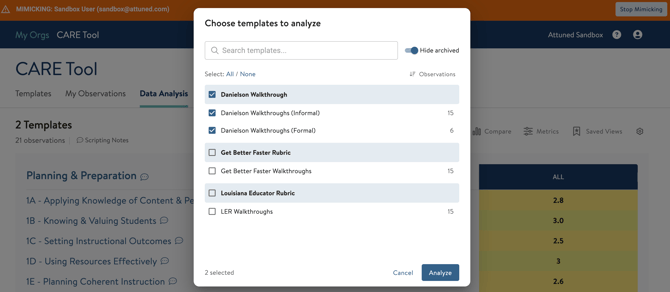
- Templates: You can select this option to add or remove templates to analyze. You will now see that same template pop up window that allows you to select or remove template from the data view. This is different from the previous experience where users had to navigate back to the previous page and edit their template selections.
- Filter: Select the type of data that you want to see - School, Grade, Content, etc. This is the same as the previous user experience.
- Compare: This had previously been labeled "Group" in the last version of Data Analysis. Using this option, you can compare different groupings of data within the filters you've chosen.
- Metrics: Based on the templates selected, the view can be specified further to see data from all indicators or specific one.
How to Use Saved Views
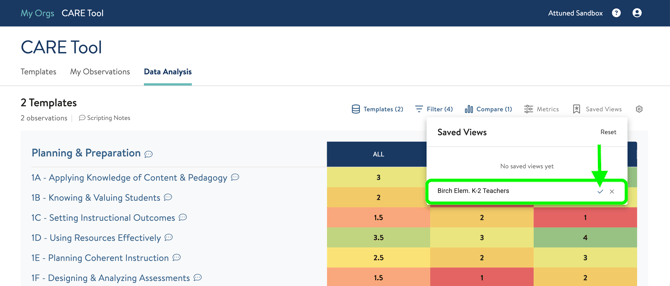
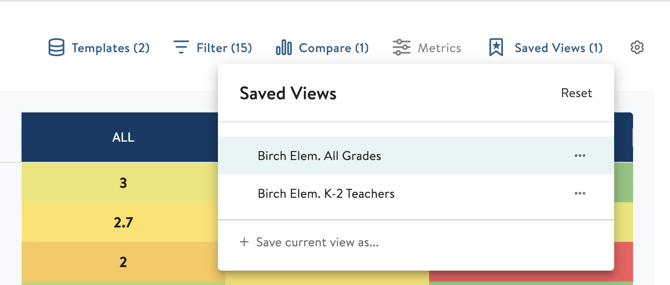
Once you have set up your data and have a view you want to save for future reference, click on "Saved Views". You will need to add a name for the view you are saving. Once titled, click the check mark to save.
Once you've saved the view, you can select the three-dot-menu to see more options.
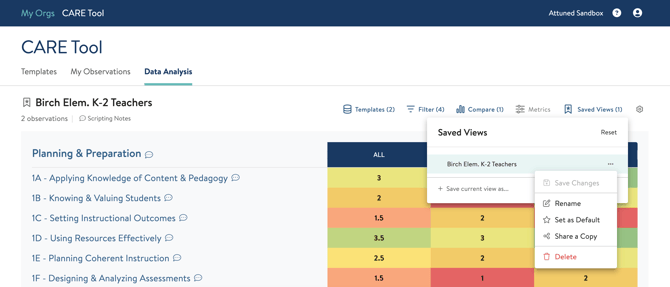
- Rename: Edit the name of your view. If you have shared this view with others, changing the name will not affect their view. It will have the name of the view when it was shared with the user.
- Set as Default: If you create a view you would like to have as your set view when clicking "Data Analysis" moving forward, you can set that view as your default. This can be updated or removed at anytime.
- If you do not have a default view set and you navigate away from the Data Analysis page, when you return, the data visualization will be exactly how you left it. You will see a pop up in the bottom corner with this reminder.
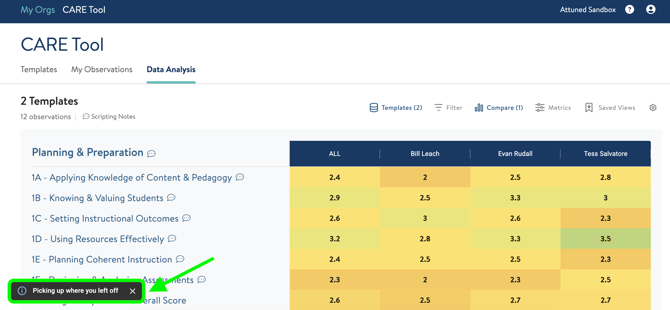
- If you do not have a default view set and you navigate away from the Data Analysis page, when you return, the data visualization will be exactly how you left it. You will see a pop up in the bottom corner with this reminder.
-
Share a Copy: Depending on your account permissions, you can share a data view with your peers who also have access to data analysis. You can choose to share with all users in the organization (who have access), or just select users.
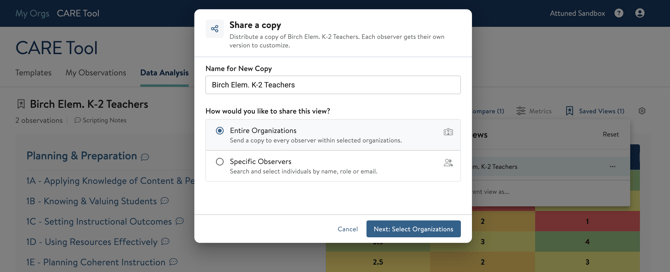
CARE Tool Admins and CARE Tool Users can share views. Teachers cannot share views — the "Share a Copy" option does not appear for them.
- Delete: Remove this view from your own account. If you have shared a copy with others, their copy will not be deleted if you delete your own.
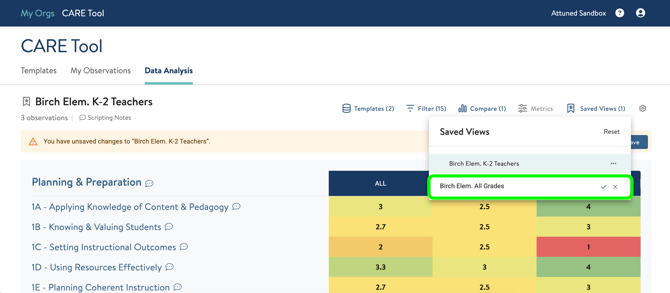
If you remain on a current saved view and make any adjustments by adding new filters, selecting new comparisons, or adjusting metrics, you will see a yellow notification appear across the top of the page, reminding you that these new updates you've made are not part of the original saved view.
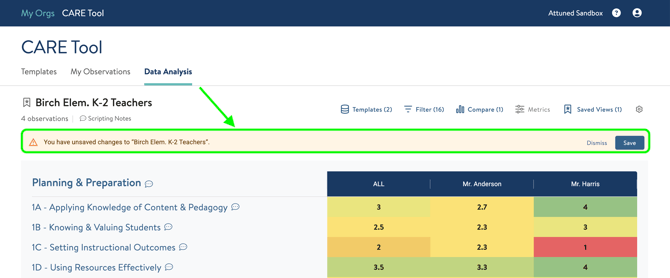
To save these changes to the current view, you can click Save.
If you want to create a separate Saved View with these new changes, you can click Saved Views again and add a new name to the updated view. See an example below with adding additional dates for a data comparison and saving it as a new view.
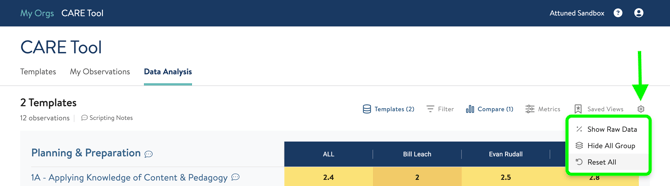
To start from scratch and create a new filter view without building on any current saved views, you can click the Settings gear icon and select Reset All to see the template window appear again.
If you have any questions or need support utilizing the Saved Views feature, please let us know! Reach out to support@attunedpartners.com or send us a chat.