
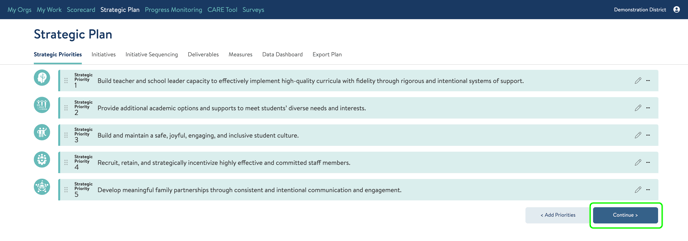
If Attuned has already entered your initiatives, you won’t see a screen with only strategic priorities like I show below. Click the dark blue Continue button from the Strategic Priorities tab or just click on the Initiatives tab at the top.
 You can see that each of your priorities is listed and each has a gray Add Initiatives button. The system includes an initiatives bank with pre-defined initiatives you can select, or you can enter custom initiatives.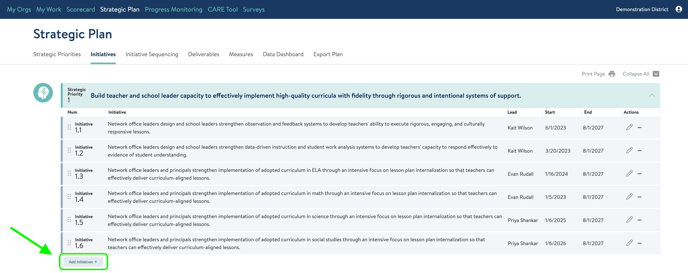
To start adding initiatives, click the Add Initiatives button under the correct priority. You’ll see some pre-set initiatives that you can choose to edit or create one of your own. You can select a predefined initiative using the checkbox, and customize the text of a pre-defined initiative using the pencil icon. Any text you type or paste into a custom box will be added as an initiative as well.
.gif?width=688&height=360&name=ezgif.com-video-to-gif-converter%20(2).gif) Once you click Save, you’ll see your initiative added to you Strategic Priority list. To edit the initiative further, you can click the pencil icon again to adjust text, name of the initiative, assign a lead to the initiative, and set start and end dates.
Once you click Save, you’ll see your initiative added to you Strategic Priority list. To edit the initiative further, you can click the pencil icon again to adjust text, name of the initiative, assign a lead to the initiative, and set start and end dates. 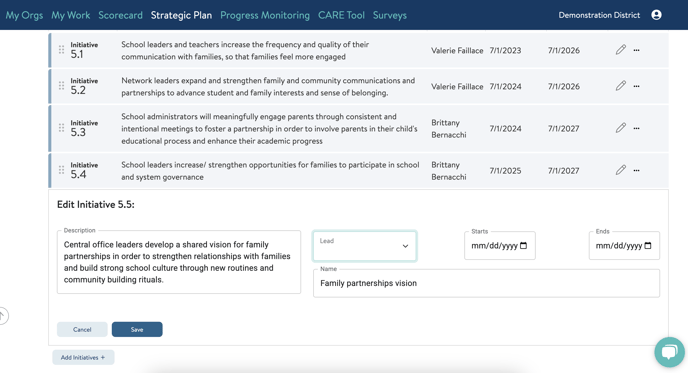
To delete an initiative, click the three-dot icon and select the trash can option. By deleting an initiative, any deliverables and measures associated with it will also be deleted. 
To reorder your initiatives, click and hold on the six-dot icon on the left of the initiative to drag and drop the initiative in the desired order. 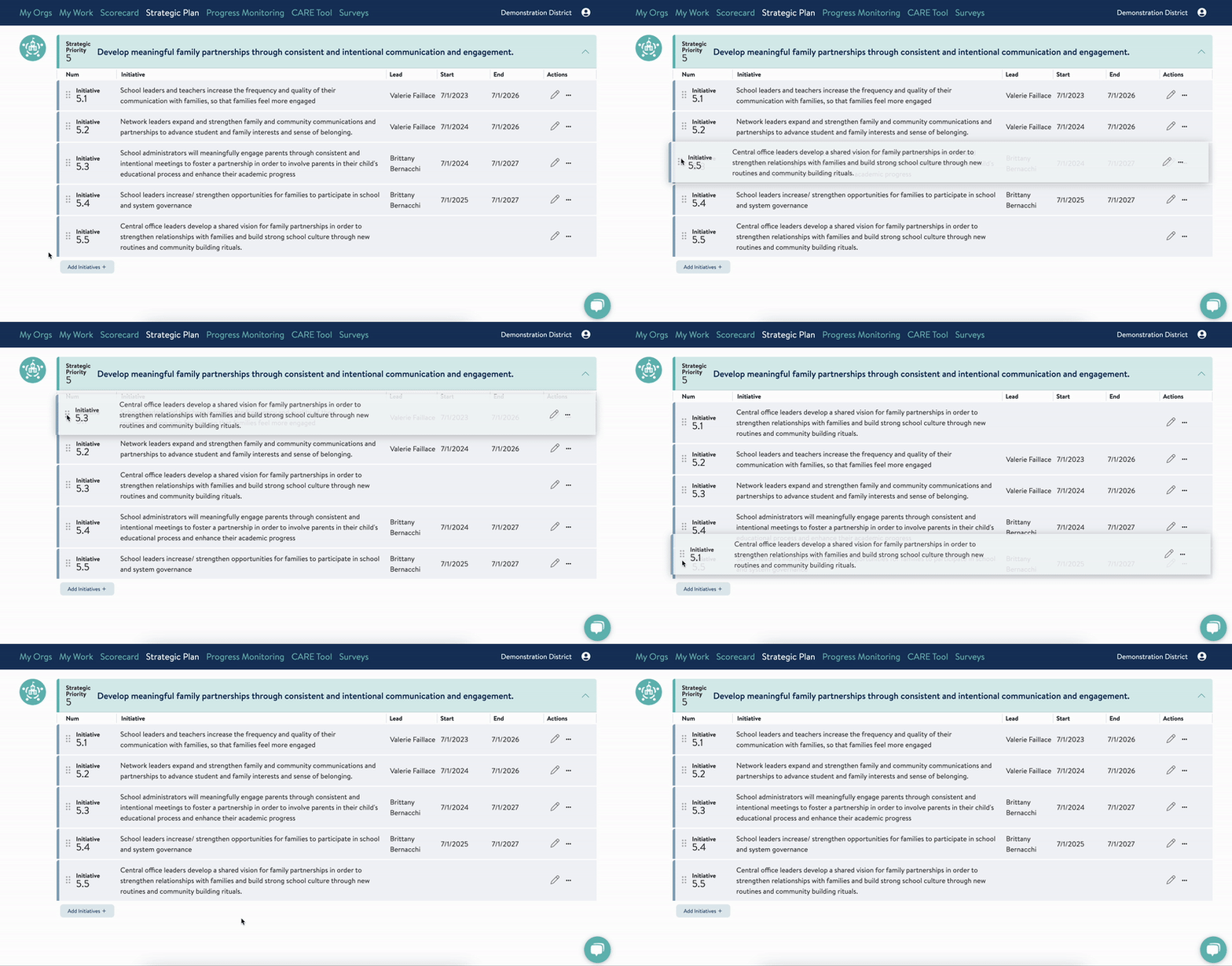
To learn about how to sequence these initiatives you've just created, check out this help article.