
Complete a Progress Report
If you’re an initiative lead, then this section of the document is for you. Filling out a report should be easy and helpful. Reach out to our team if you have feedback on how we can improve this feature for you!
Progress Reports on the My Work Screen
The My Work screen is the main screen on which you will determine which initiative progress reports require your attention. The top section of the screen, My Initiatives, includes a Progress Reports column on the far right-hand side. In this section you’ll see indications of reports in various statuses.
Reports which require your completion either have a light green square with a white arrow icon next to it ( 
 ). You’ll also see the date on which the completed report is due. If the due date of the report is within 7 days a light green clock icon (
 ) will appear next to it.
To begin, or continue, working on a progress report, click on the icon next to the report. This action will take you to the report for the initiative. 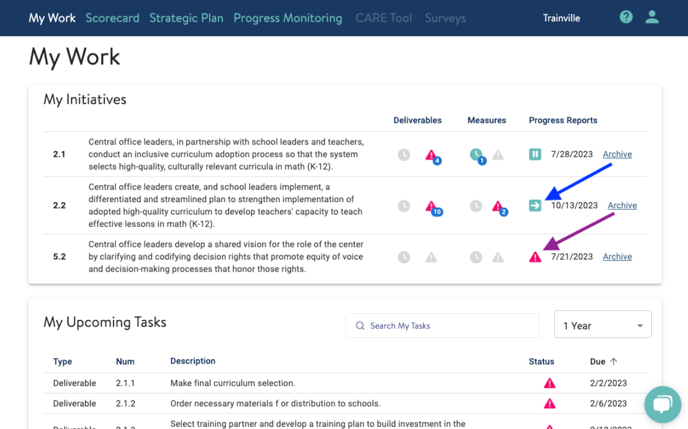
If “Progress monitoring not configured” appears, please use the chat function to reach out to our support team and we will assist you.
To see your report history, click the Archive link.
My Progress Reports
The My Progress Reports screen shown below - get there by clicking the Progress Monitoring link at the top of the screen - is a second place to see which initiative progress reports require your attention.
Reports which require your completion have a light green square with a white arrow icon next to it )will appear next to it instead. Overdue reports will also have a pink triangle with an exclamation point icon () next to the date. To begin, or continue, working on a progress report click on the initiative row (orange arrow below). This action will open the report for the initiative.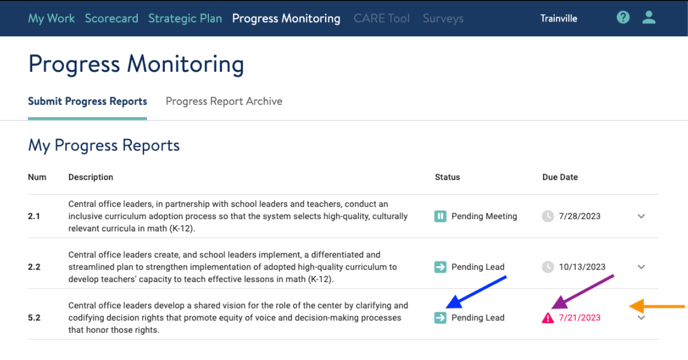
Filling in your Progress Report
The links from both the My Work screen and the My Progress Reports screen will open your report.
The first section of the report is the Qualitative Report. Start by indicating whether you believe your initiative is:
- On track
- Moving along
- Off track
Next, you will add what you are most proud of in your work towards this initiative, as well as what highlights you would like to share to talk with your Reviewer. Summarizing these specific details and providing supporting information will quickly align you and your Reviewer on the initiative’s status, wins, and areas that may require your collaboration to move smoothly forward towards your goals. When possible, include specific and concrete examples that are representative of the work and progress made towards the initiative.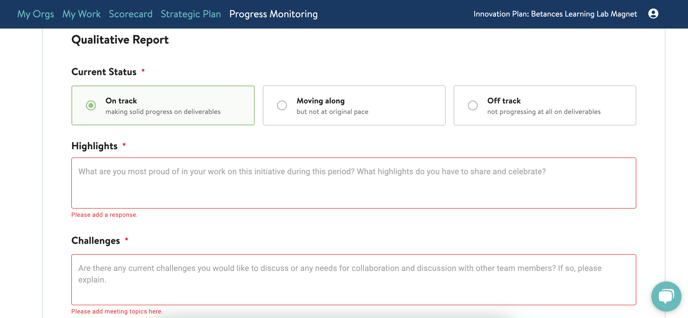
Work Products are optional but are an excellent way to provide more details on your initiatives’ progress. To add a work product, use the Add a File or Add a Link options, or drag and drop a file into the dotted area. 
Note: If you would like to change the prompts listed under "Highlights" or "Challenges", reach out to our support team and we can customize these for your organization.
The next section, titled Deliverables, serves as a reminder of how you plan to make progress on this initiative. To view the details of deliverable items, their dates, and statuses, click anywhere on the deliverables row. 
Note: The information you see here comes from the Strategic Plan. It cannot be edited on this screen. If you need to update the deliverable details for any reason, use the Strategic Plan link in the blue top navigation bar to go to the Strategic Planning Tool. 
The next section titled Quantitative Report is where you will provide an update on the initiative’s measures.
Start by indicating whether you believe your measures will be available on time and with high quality. Then indicate whether you believe the data will show your initiative to be on track (i.e. they’ll meet or exceed your target.) Answer "Yes" to both of these questions unless you’re relatively certain there is a problem. It is normal to have some uncertainty early in implementation, and remember you will have the opportunity to answer these questions every month.
Only answer "No" if you can name specific blockers now. By selecting No to either question, an additional field will appear and you must then describe those blockers. 
The details of your measure(s) appear in a grid below these two questions. This information is meant as a reminder of the measure’s details. 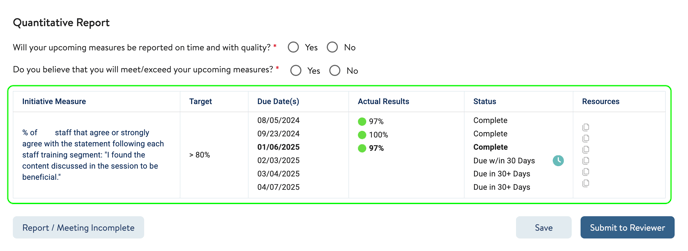 If you need to update the measure’s details for any reason, go to your Strategic Plan tab in the blue top navigation bar to go to the Strategic Planning Tool.
To save your report for later, click the Save button. This will save what you entered without submitting it to the Reviewer.
If your report is complete, click the Submit to Reviewer button. This will save what you have entered, and send it to your Reviewer for feedback.
Note: After using the Submit to Reviewer button you can continue to make changes to your progress report until your Reviewer sends feedback back to you.
The last section of the progress report, titled Notes from [your Reviewer] (orange arrow), will not appear until your Reviewer has responded to your report with comments and suggestions.
You won’t need the Report / Meeting Incomplete button often . You would use this button if there was no meeting about this report or you would not be moving forward with the report for some reason. Clicking this button will move the report to the Archive section.
If you need support with progress reports, reach out to our team! Send us a chat or an email at support@attunedpartners.com.