If your job is to support initiative leads by reviewing their reports, commenting, and supporting them as they work on your plan, then this article will apply to you.
The Review Progress Reports Screen
The Review Progress Reports screen within Progress Monitoring is your dashboard to see every lead you are helping and all their progress reports. Here you’ll find a tile for each Initiative Lead you are guiding. Each Initiative Lead tile includes a list of progress reports and indication of actions required.
White, White w/Green border and Gray are all based on the status of the reports in the tile.
- White tiles include active reports that need your attention. You’ll want to focus on these first. (blue arrow)
- White tiles with a light green border include active reports, however they do not need your attention because your review and feedback is complete. (purple arrow)
- Gray tiles include reports that haven't been started yet, so they also do not require your attention. (orange arrow)
Initiative progress reports which require your review have a light green square with three white dots 


Reports awaiting the Initiative Lead’s submission are indicated by a gray arrow icon 


Viewing a Lead’s Reports
Clicking the Review button on any tile will bring you to more details for that Initiative Lead’s reports. On this screen, progress reports which require your review will have a light green square with three white dots
When there are reports which have not been completed and submitted by the Initiative Lead, they will appear in this list, but you will not be able view or comment on them until the lead submits them to you .
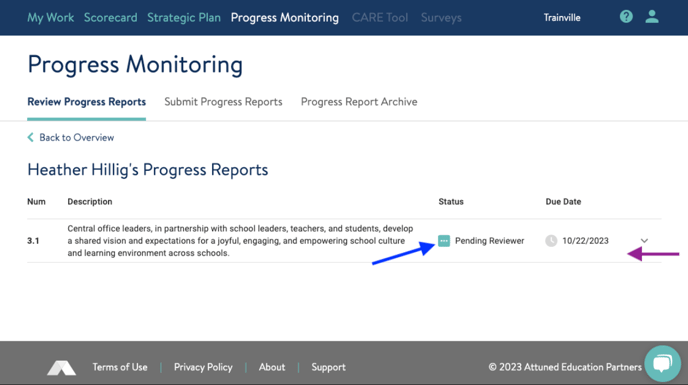 Once you click on the initiative, the progress report details will open, and you can begin, or continue completing, your review and feedback. Learn the details of reviewing and providing feedback in the next section of this guide.
Review & Give Feedback on a Progress Report
Visit the Progress Monitoring Tool regularly, looking for the light green square with three white dots
Take your time reading the report the Initiative Lead has composed. Review the quantitative and qualitative data provided and compare and contrast them against your strategic plans and expectations of progress. After organizing your feedback on the update, and considering where you would like to focus when you meet with the Initiative Lead, put those notes in the report section titled, Notes to [Initiative Lead] (blue arrow below).
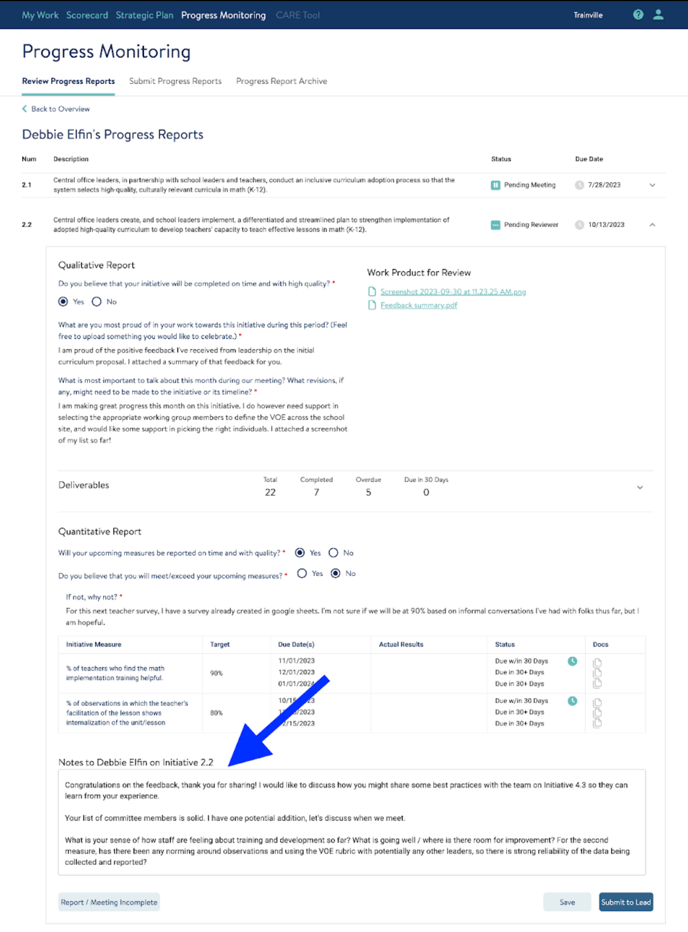
Some organizations will have a third person involved in the feedback process. That person is called a Facilitator. Facilitators - often but not always Attuned Consultants - work with your district on plan implementation, and they can comment on progress reports with their questions, ideas, and suggestions. Their comments will be in the report section titled Notes to [Initiative Lead], at the end of the report . The Reviewer and Facilitator should identify their comments, perhaps by preceding them with their initials, if necessary.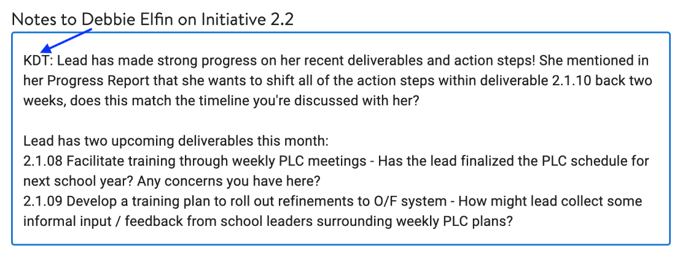
Saving and Submitting Your Feedback
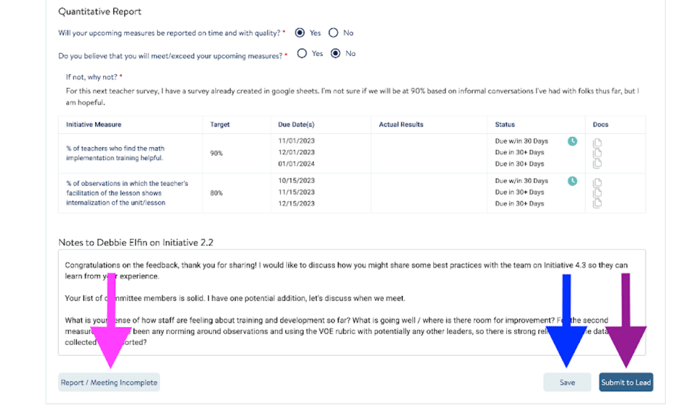
To save your report feedback for later, click the light blue Save button (blue arrow). This will save what you entered without submitting it to the Initiative Lead. If your report is complete, click the dark blue Submit to Lead button (purple arrow). This will save what you have entered, and send it to the Initiative Lead. Note: After using the Submit to Lead button you can continue to make and save updates to your feedback until you or the Initiative Lead marks the report complete.
You won’t need the Report / Meeting Incomplete button (pink arrow) often . You would use this button if there was no meeting about this report or you will not be moving forward with the report for some reason. Clicking this button will move the report to the Archive section.
Warning: This action cannot be undone, except by contacting Attuned Support.