
Adding a New Goal and Action Steps
Attaching a Goal to an Observation
Adding a New Goal
There are a few different ways to add goals for a teacher or leader.
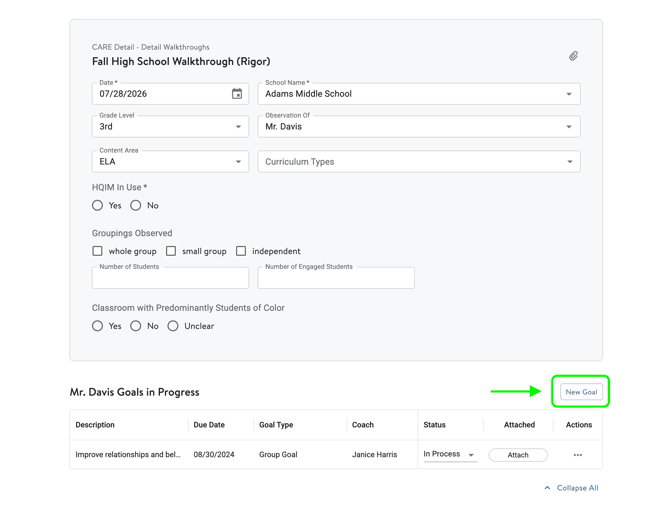
- When creating an observation, after selecting a teacher, you will see a Goals section appear in the observation form itself. If there are existing goals, you'll see them there. To add a new goal, click New Goal to add in the goal details.
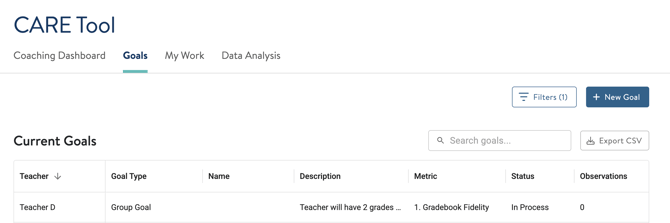
- Instead of creating a goal within an observation, you can also create goals separately in the Goals section of the CARE Tool. Click Goals and select the blue New Goal button.
From here, fill out the goal details. You can also add smaller, bite-sized actions steps to work towards the goal.
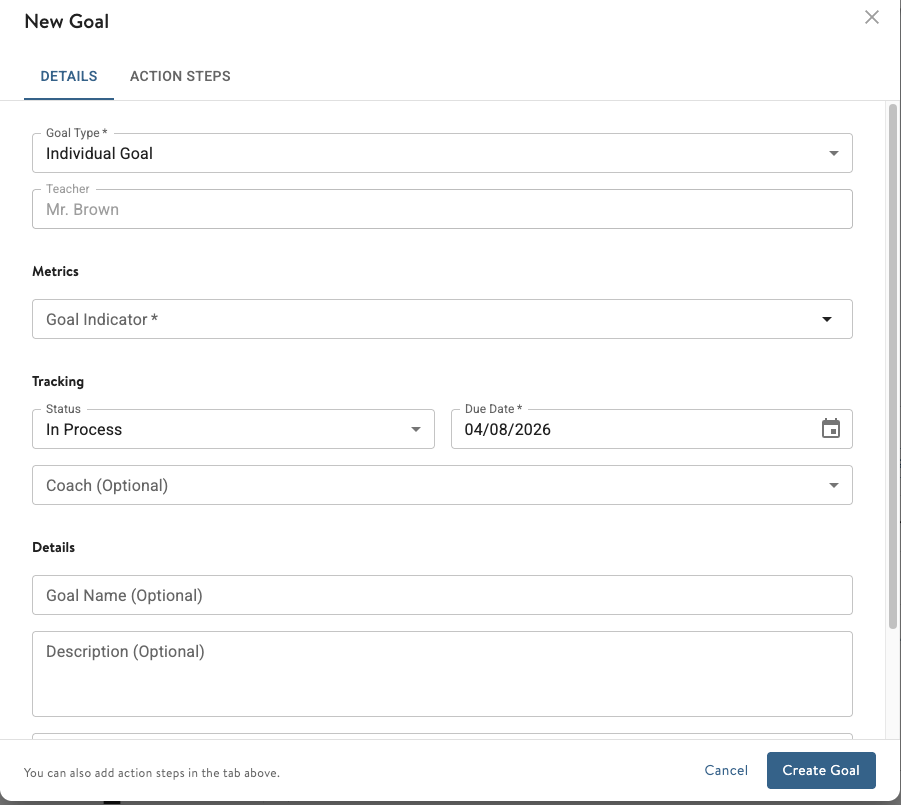
You can also add smaller, bite-sized actions steps to work towards the goal. Click Action Steps to add smaller to-do items to make progress towards the goal. 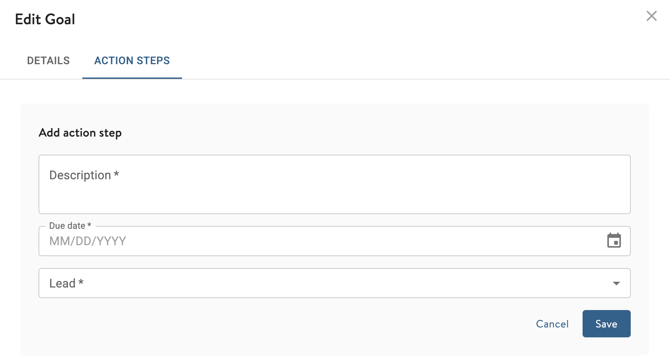
Editing a Goal
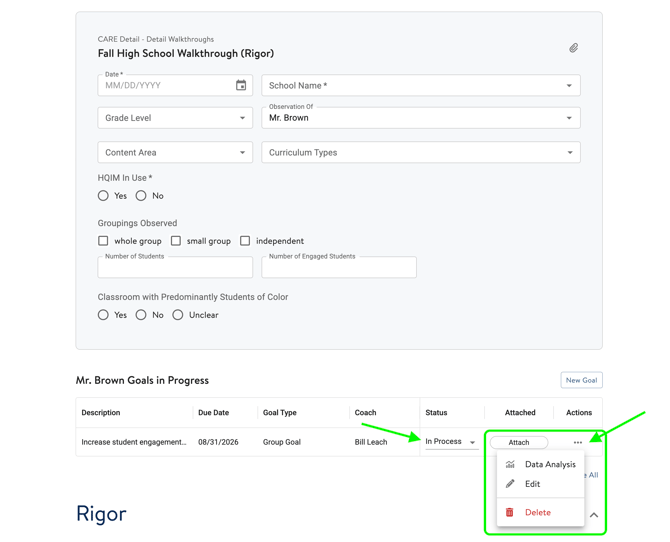
If you need to make changes to a goal or update its status, you can click the three-dot menu next to the goal either in the Goals tab or through an observation form. 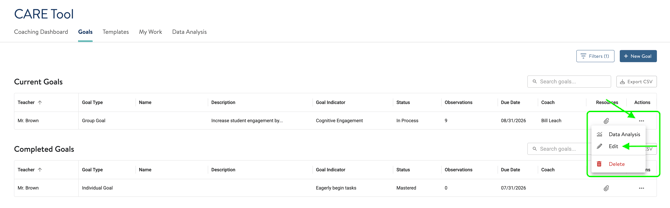
Attaching a Goal to an Observation
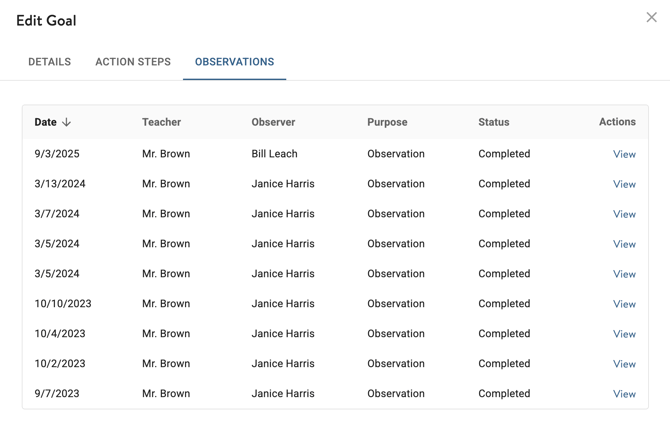
If you'd like an observation to connect directly with a goal and reference it later on in your coaching, you can attach it. Open the observation form, select the teacher, and under their goals, click the Attach button. You will be able to reference these attached observations when editing the goals:
If you need support with using Goals, reach out to us at support@attunedpartners.com or use the chat feature in the tool for help.