
This article will introduce you to the contents of the notifications emails and also to how to control them.
Please note that notification settings are unique to each user, therefore users must turn on their own notifications in order to receive emails!
Strategic Plan Notifications
In the Strategic Plan, notifications are available for:
- Initiative Leads
- Deliverable Owners
- Results reporters
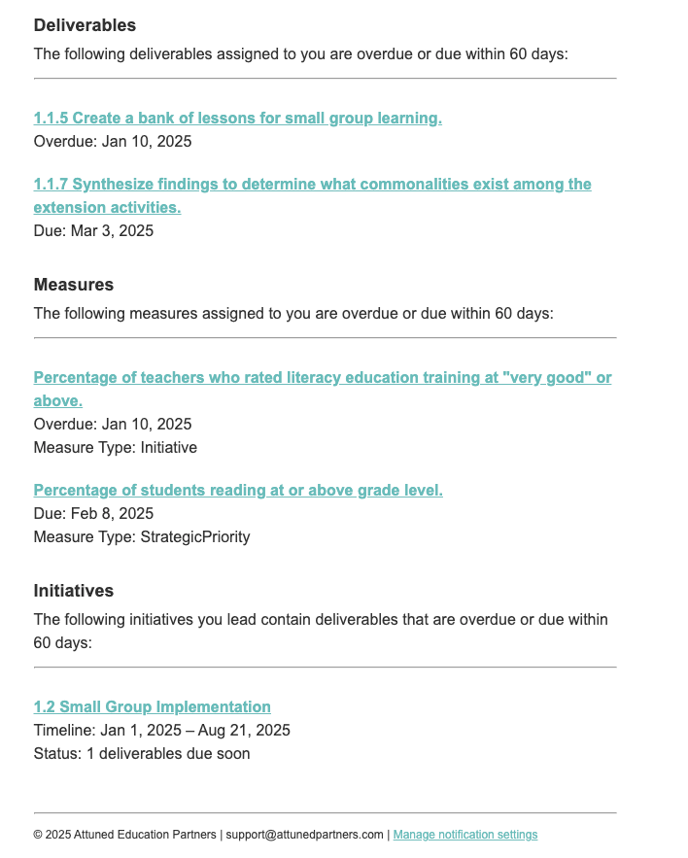
You'll receive a maximum of one email per day (automatically sent at 4am EST) for everything you own in a particular organization. If there are no changes to report, you will not receive any email.
For deliverables and results, you'll be notified when the item you own is overdue.
For initiatives, you'll see a summary of any deliverables for that initiative that are overdue or due soon, regardless of who owns them.
Below is an example of an email body. The subject of each email will be <Organization Name> Strategic Plan Summary - mmm dd, yyyy.
Clicking on the links will take you directly to the item. There's also a link in the footer that takes you to notification settings.
Progress Monitoring Notifications
In Progress Monitoring, notifications are available for:
- Initiative Leads
- Report Reviewers
- Facilitators
You'll receive a maximum of one email per day (sent at 4am EST) for everything you own in a particular organization. If there are no changes to report, you will not receive an email.
Note: This Progress Monitoring email is separate from the Strategic Planning email. If you are using both Progress Monitoring and Strategic Planning, you may receive two emails if changes have been made in both tools.
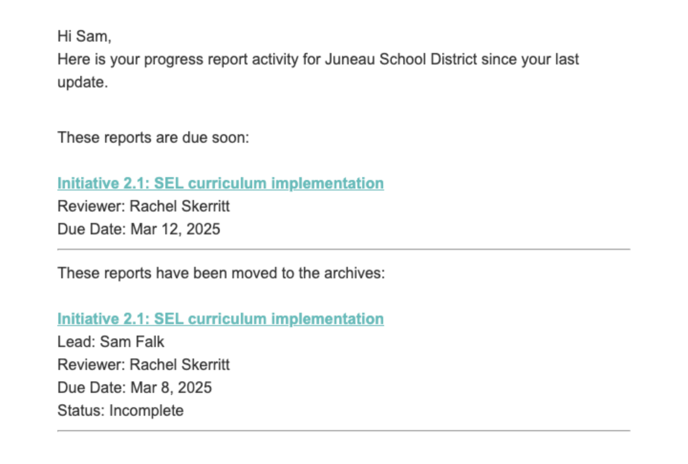
Initiative Leads will receive notifications whenever:
- A progress report is due soon or overdue. "Due soon" applies to anything that is due the following day.
- A reviewer submits a report back to you.
- A report is closed and moved to the archives. And be sure to check out the new auto archiving feature in this article.
Reviewers and Facilitators will receive notifications whenever:
- A lead's report becomes overdue
- A lead submits a report for you to review
- A report is closed and moved to the archives
Below is an example of an email that was sent to a reviewer. The subject of each email will be <Organization Name> Progress Monitoring Updates - mmm dd, yyyy.
Clicking on the links will take you directly to the item. There's also a link in the footer that takes you to notification settings.
Controlling Notifications
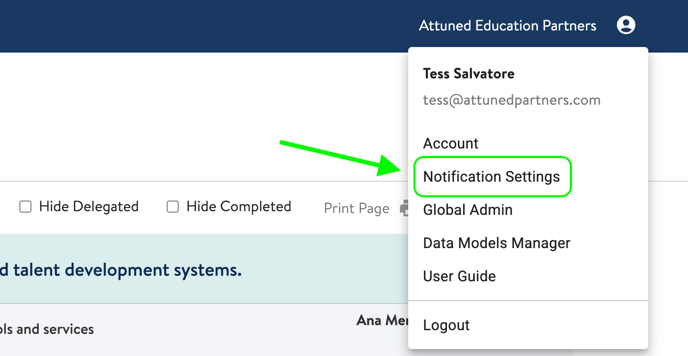
To enable notifications for Plan Management and/or Progress Monitoring, navigate into an organization. You can tell you're "in" an organization because the name of the organization is shown in white next to the profile (person) icon. See the screen below.
- In the top right corner, select that profile icon and click "Notification settings". If you don't see Notification Settings, that means you're on the My Orgs screen instead of in an organization.
- Progress Monitoring are simple. You either receive them or you don't, and you control that with the toggle on the right. If you do not use Progress Monitoring, you won't see this option.
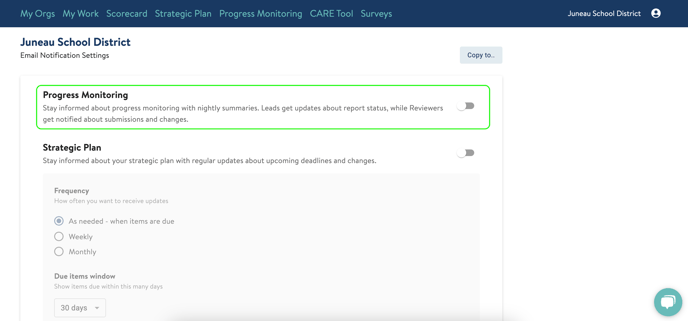
- Strategic Plan notifications require a little more control.
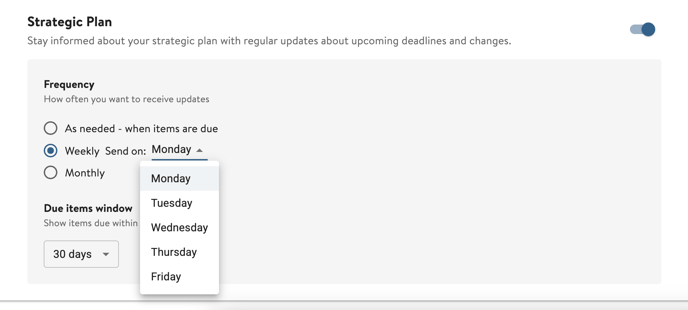
You can receive them as needed (only when items are due / overdue), on a weekly basis, or on a monthly basis. You can choose what day of the week or day of the month to receive these emails. You'll can also choose the timeframe you want to include upcoming due dates - 30, 60, or 90 days.
If you have access to multiple orgs, you can choose to copy the same email notification settings to other orgs. To do this:
- Select the "Copy to" button in the upper right corner of the notifications page.
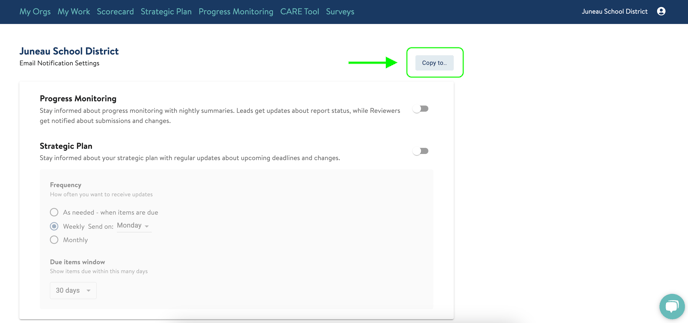
- In the pop up window, select the orgs to which you would like to apply these same notifications settings.
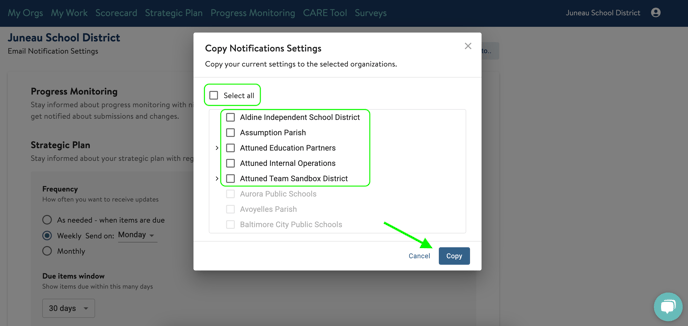 You can choose "Select all" if you want to apply these settings to all orgs you have access to, or you can check the boxes next to individual orgs instead. Once you have selected the orgs to apply settings to, click the "Copy" button in the bottom right corner of the window.
If you prefer to do email notifications individually for each org you have access to, you can scroll down a bit further to the "Your Organizations" section.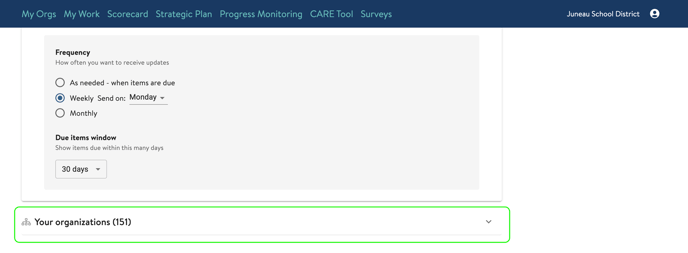
Select the down arrow on the right to reveal the list of your organizations. To switch to another org's email notifications page, click the "View" button next to the org name.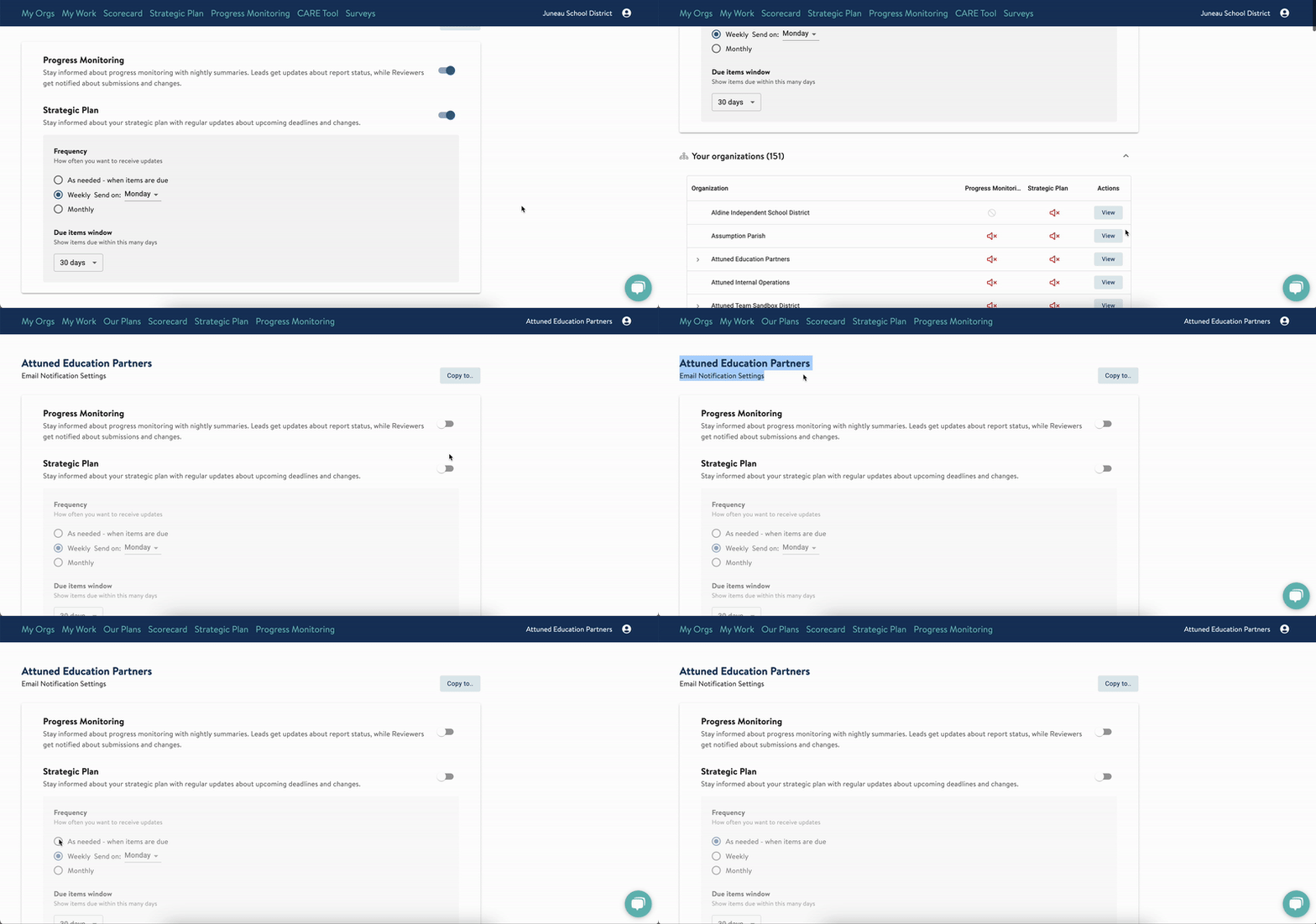 Once you are on the new org's page, you can adjust the notification settings as you did for your previous org.
If you have any trouble applying notification settings to your org(s), let us know and we are happy to support you! Send us a chat or email us at support@attunedpartners.com.